zebra printer repair
Zebra Fast Onsite Printer Repair
Zebra Authorized Service Provider (ZASP)
Call To Schedule Service (800) 643-2664

Work with a Zebra Certified Repair Company & Get Your Zebra Printers Repaired Fast & Economically
service benefits

Get FAST Repair Now!

Get FAST  Onsite Repair For Zebra Printers. We'll Call You Within Minutes!

*Only industrial models.  We don't repair card printers.  Mobile devices are repaired at our EXPRESS Repair Centers. 
zebra logo
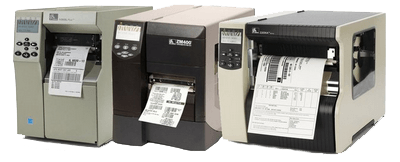
zebra printers

Zebra Printer Repair

Zebra printer repair by an authorized Zebra service partner offering fast onsite Zebra printer repair by local technicians call today (800) 643-2664.

Why use us for your Zebra printer repair needs?

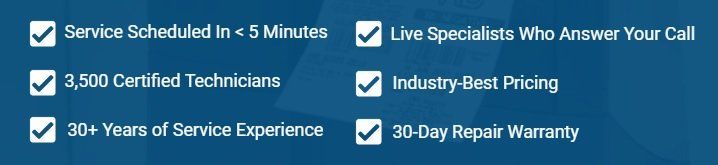
Live Service Specialists
Talk to a live person right away – NO PROMPTS!

Faster Scheduling
Schedule service in less than 5 Minutes

Largest Service Fleet
3,500 certified technicians are standing by

Affordable Rates
Industry best competitive pricing.
Service Repair Guarantee
30 day warranty on the repair of your printer
zebra logo
zebra printers

zebra onsite printer repair

ZEBRA PRINTER NOT WORKING? CALL US TODAY


• My Zebra printer isn't printing any labels

• My Zebra printer is skipping labels

• The barcodes being printed are unreadable or poor quality

• My Zebra printer stopped printing out of nowhere

• My Zebra  printer is showing error codes

• Despite changing the battery our Zebra printer doesn't work

• Our Zebra printer prints a few labels then stops

• I can't get ahold of Zebra Technologies for support

• Our Zebra printer warranty expired

• I can't find a local company who can get here fast enough

• I need routine maintenance done on my Zebra printer

• Our business operations rely on our Zebra printers

zebra premier business partner

Zebra Authorized Service Partner

Zebra Authorized Service Partner company. This means our technicians have been certified by Zebra Technologies through extensive training and testing to repair their thermal label printers. Let our knowledge and experience get your Zebra printers operational today!
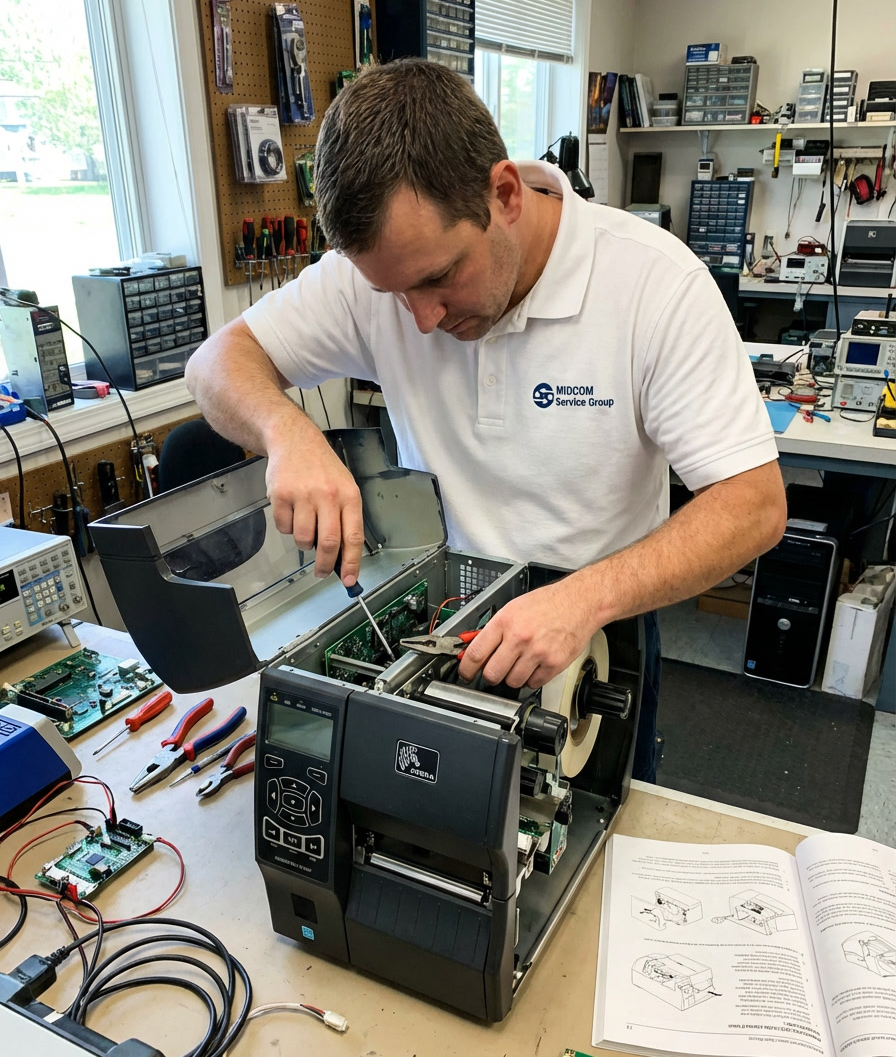
zebra printer repair technician

3,500 Friendly Certified Technicians Nationwide Are Ready To Come To Your Business

See what other businesses have to say about our service:

5 star review

"Tech arrived on time, was friendly and professional, and completed repairs quickly, with confidence and knowledge. Will use again!"


-Steve S.

5 star review

We had 4 line printers that needed to be checked, one was definitely broken. MIDCOM quickly answered my inquiry about service and scheduled a technician to come out the next day. After the technician arrived, they assessed the damage and within minutes received a parts quote from MIDCOM so that service could be completed and we could be back to work. Very happy with MIDCOM!


-Mary M.

5 star review

"It was a pleasure to be able to reach a customer service rep immediately and very polite. They're service rep came a scheduled and quickly fixed our IBM Infoprint and he too was very courteous."


-Couch Distributing Co.
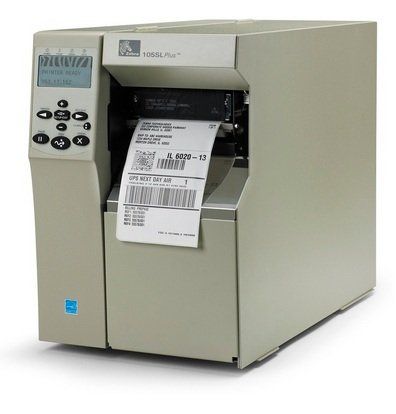
Zebra Label Printer Models We Repair Onsite
zebra label printers
Zebra ZT510
Zebra ZT610
Zebra ZT620
Zebra 105SL
Zebra 110Xi4
Zebra 140Xi4
Zebra 170Xi4
Zebra 220Xi4
Zebra 110XiIIIPlus
Zebra 140XiIIIPlus
Zebra 170XiIIIPlus
Zebra 220XiIIIPlus
Zebra R110Xi
Zebra R110Xi HF
Zebra R170Xi
Zebra 110PAX3
Zebra 110PAX4
Zebra 140Xi
Zebra 140XiII
Zebra 140XiIII
Zebra 170PAX
Zebra 170PAX2
Zebra 170PAX3
Zebra 170PAX4
Zebra 170Xi
Zebra 170XiII
Zebra 170XiIII
Zebra 220XiII
Zebra 220XiIII
Zebra 2746
Zebra 2746e
Zebra 90XiII
Zebra 90XiIII
Zebra 90XiIIIPlus

Zebra 96XiII
Zebra 96XiIIIPlus
Zebra R110PAX3
Zebra R110XiIIIPlus
Zebra S600
Zebra Z4000
Zebra Z4M
Zebra Z4Mplus
Zebra Z6000
Zebra Z6M
Zebra Z6Mplus
Zebra ZM400
Zebra ZT220
Zebra ZT230
Zebra ZT410
Zebra ZT420
and many more.

Wherever You Are, We Can Help!

Largest Zebra printer repair service fleet with 3,500 technicians throughout the United States and Canada.

frequently asked questions for zebra printers


General Zebra Printer Questions

  • What is a Zebra printer and what is it used for?

    Zebra printers are industrial-grade label and receipt printers used for printing barcodes, shipping labels, wristbands, and tags — common in warehousing, healthcare, retail, and logistics.

  • What's the difference between direct thermal and thermal transfer printing?

    Direct thermal uses heat-sensitive media that darkens on contact with the printhead — no ribbon needed. Thermal transfer uses a ribbon to transfer ink onto the label, producing more durable, longer-lasting prints.

  • How do I set up a Zebra printer for the first time?

    Install the Zebra Setup Utilities software, connect the printer via USB or network, load media and ribbon (if applicable), run the calibration wizard, and install the ZDesigner driver.

  • What is ZPL and do I need to know it?

    ZPL (Zebra Programming Language) is the command language used to design labels. Most users design labels through software like ZebraDesigner or Labelary, but knowing ZPL basics helps for troubleshooting and custom integrations.

  • What label media is compatible with my Zebra printer?

    Zebra printers support a wide range of media sizes and types. Check your printer model's specification sheet for the min/max label width and length, core size, and whether it supports die-cut, continuous, or fan-fold media.

  • How do I load labels and ribbon into a Zebra printer?

    Open the media door, thread the label roll through the guides and under the printhead, then close. For thermal transfer, load the ribbon with the ink side facing down, routing it through the ribbon spindles before threading.

  • Why does my Zebra printer keep blinking or showing a "media out" error when labels are loaded?

    This usually means the media sensors can't detect the labels. Try recalibrating the printer by holding the Feed button during startup, and ensure the label is routed correctly past the sensor.

  • Can I use third-party labels and ribbons with my Zebra printer?

    Yes, third-party media works with most Zebra printers, though Zebra recommends certified supplies for optimal print quality and to avoid voiding the warranty. Always verify compatibility with your specific model.

  • How do I connect a Zebra printer to Wi-Fi?

    Use the Zebra Setup Utilities app or the printer's onboard menu to enter your Wi-Fi credentials. For enterprise networks, Zebra's Print DNA tools support WPA2 and certificate-based authentication.

  • How do I share a Zebra printer across a network?

    Assign the printer a static IP on your network, install the ZDesigner driver on each workstation, and add the printer using its IP address. Many enterprise models also support print server software like Zebra's ZebraLink.

  • What software can I use to design labels for Zebra printers?

    Popular options include Zebra's own ZebraDesigner, Labelary (browser-based ZPL previewer), NiceLabel, Bartender, and various ERP/WMS integrations. Many shipping platforms like ShipStation can print directly to Zebra printers.

  • Does Zebra have a mobile printing app?

    Yes. Zebra's Printer Setup Utility app (iOS and Android) lets you configure and test printers wirelessly. Many Zebra mobile printers also support Bluetooth pairing with smartphones and tablets.

  • Why are my labels printing faded or too light?

    Increase the darkness/density setting in the printer driver or via the front panel. If prints are still faint, the printhead may be worn and need cleaning or replacement.

  • Why are my labels printing with streaks or voids?

    Streaks usually indicate a dirty or damaged printhead. Clean it with an IPA (isopropyl alcohol) swab. If streaks persist after cleaning, the printhead likely needs replacement.

  • How do I calibrate a Zebra printer?

    With most models, hold the Feed button while powering on to trigger auto-calibration, which detects label gaps or black marks. You can also calibrate manually via Zebra Setup Utilities for finer control.

  • My Zebra printer is printing labels with an offset — the image is shifted. How do I fix it?

    This is typically a calibration or label-format issue. Recalibrate the printer, then check that your label template dimensions exactly match your physical label size and the correct media type is selected.

  • How often should I clean the printhead?

    Zebra recommends cleaning the printhead every time you change a ribbon or label roll, or at a minimum every 5 rolls. Use a lint-free IPA swab and allow it to dry fully before printing.

  • How do I update the firmware on a Zebra printer?

    Download the latest firmware from Zebra's support site for your model. Upload it via Zebra Setup Utilities, ZDownloader, or send the firmware file directly over the network using FTP or the printer's web interface.

  • How do I factory reset a Zebra printer?

    The method varies by model. On most desktop printers, hold the Feed and Cancel buttons simultaneously during power-on. You can also reset via the Settings menu or Zebra Setup Utilities — check your model's user guide for exact steps.

  • What is Zebra's Print DNA and why does it matter?

    Print DNA is Zebra's suite of built-in software tools (including Link-OS, Profile Manager, and Secure Element) that enable remote management, security configuration, and fleet monitoring for enterprise deployments with many printers.


Zebra ZT620 Frequently Asked Questions

  • What type of printer is the Zebra ZT620?

    The ZT620 is an industrial printer that uses both direct thermal and thermal transfer print technology. It features a metal housing for durability and supports vertical and rotated printing.

  • What is the maximum print width and speed of the ZT620?

    The ZT620 prints 6 inches wide (168 mm) and up to 12 inches (305 mm) per second, making it suited for high-volume demands.

  • What printer series does the ZT620 belong to?

    The ZT620 is part of the ZT600 Series Printer family from Zebra Technologies.

  • What are the physical dimensions of the ZT620?

    The printer has a width of 341.45 mm and a depth of 505 mm, making it suitable for various industrial workspaces.

  • What connectivity options does the ZT620 support?

    The ZT620 supports connectivity via USB port, Ethernet port, serial/parallel port, and wireless network. It can also connect to phones and tablets.

  • What programming languages does the ZT620 support?

    The ZT620 supports multiple page description languages, giving it flexibility across different software environments.

  • Does the ZT620 support RFID printing?

    Yes, the ZT620 can be used for specialty printing applications such as printing on RFID labels. Zebra also offers a dedicated ZT620 Passive RFID variant.

  • What display does the ZT620 have?

    The ZT620 features an LCD display along with a color display, contributing to an enhanced user experience.

  • How do I connect the ZT620 to a Windows computer?

    You can connect via USB, Ethernet, or serial/parallel port. Zebra provides a Printer Installation Wizard to guide driver installation and connection setup.

  • How do I install drivers for the ZT620?

    Download the latest printer drivers from the Zebra website or use the Zebra Setup Utilities software, then follow the installation instructions and connect the printer to your computer when prompted.

  • Why is there a white line or streak running through my printed labels?

    This is often caused by a ribbon crease. Recommended steps include cleaning the printhead and platen roller, checking that the label material and ribbon are compatible with the printer, adjusting the darkness setting, and verifying the label speed setting.

  • How do I troubleshoot connectivity issues with the ZT620?

    Check that Ethernet cables are securely connected, verify network settings are correctly configured, ping the printer's IP address from a computer on the same network, update printer drivers, and restart the printer and network devices.

  • Do I need a ribbon for all printing?

    A ribbon is required for thermal transfer media but is not needed for direct thermal media.

  • What software suite is the ZT620 compatible with?

    The ZT620 is compatible with the Zebra DNA software suite, which makes devices more powerful and easier to manage, with tools that provide top performance, simple setup, and strong security.

  • How do I find the ZT620's IP address?

    You can check the printer's network configuration settings via a web interface or configuration utility, or look for a label on the printer itself.

  • Can I connect the ZT620 to a mobile phone or tablet?

    Yes, the ZT620 supports connecting to phones and tablets in addition to Windows-based computers.

  • What print quality settings should I start with?

    Set the print darkness to the lowest setting that provides good print quality. Figure references in the user guide show how darkness and print speed can affect barcode quality.

  • What media handling modes does the ZT620 support?

    The ZT620 supports various media handling methods, including tear-off mode, with guidance on loading media provided in the user guide.

  • How do I run diagnostics on the ZT620?

    The user guide includes a dedicated diagnostics and troubleshooting section providing diagnostic tests and other information to help optimize printing or troubleshoot issues.

  • Where can I get service, supplies, or a maintenance plan for the ZT620?

    Zebra offers a OneCare maintenance plan that provides timely support and comprehensive repair services beyond the standard warranty. Zebra Certified Supplies are recommended to optimize performance, print quality, durability, and readability, and a broad range of upgrade kits and accessories is also available.


Zebra ZT610 Frequently Asked Questions

  • How do I install the printer driver on the ZT610?

    Download the recommended Windows Printer Driver v10 from Zebra's downloads page. Do not connect the printer via USB before the driver is installed — doing so may cause it to appear as an unknown device in Devices and Printers.

  • How do I connect the ZT610 to my network?

    The ZT610 supports Ethernet (wired), Wi-Fi (wireless), USB, and Serial/Parallel connections. For Ethernet, connect the cable and configure network settings via the touch display or Zebra Setup Utilities. It can also be added as an IPP/IPPS printer in Windows 10/11.

  • Do I need a ribbon to print on the ZT610?

    A ribbon is required when using thermal transfer media. It is not required when using direct thermal media.

  • What print resolutions does the ZT610 support?

    The ZT610 is available in 203 dpi, 300 dpi, and 600 dpi (micro-label) versions. The maximum continuous print length depends on resolution: 203 dpi supports up to 3,810 mm; 300 dpi up to 2,540 mm; and 600 dpi up to 762 mm.

  • How do I load media (labels) on the ZT610?

    Open the media compartment, place the roll on the media supply spindle, thread the media through the guides, and run auto-calibration so the printer detects the label size and gap.

  • How do I load the ribbon on the ZT610?

    Thread the ribbon from the supply spindle through the printhead and attach it to the take-up spindle. Zebra provides video guides for loading ribbon, including the 600 dpi micro-label variant.

  • How do I calibrate the media sensors on the ZT610?


    If printing issues are observed, such as skipped labels, vertical image/label drift, or ribbon out or media out errors, you can run Auto Calibration or Manual Calibration from the printer menu or through Zebra Setup Utilities.

  • The labels on the ZT610 are printing short/cut off — how do I fix it?

    Go to the printer menu and navigate to Print > Print Quality > Label Length. Ensure the label length is set correctly, then perform a calibration of the media sensors so the printer correctly detects the label size.

  • What label widths does the ZT610 support?

    The ZT610 supports label widths from 1 inch (25.4 mm) up to 4 inches (101.6 mm), making it suitable for a wide range of industrial labeling applications.

  • Why is my ZT610 print quality poor or faded?

    One of the most common issues involves the print head and degraded print quality. Troubleshooting typically involves cleaning the print head and checking the print head pressure. Also verify that darkness and speed settings match your media type.

  • How do I adjust print darkness on the ZT610?

    Set the print darkness to the lowest setting that provides good print quality. This can be done via the touch display (Print > Print Quality > Darkness) or through Zebra Setup Utilities.

  • Why is the printer showing a "Ribbon Out" or "Media Out" error on the ZT610?

    Check that the ribbon and media are loaded correctly and fully seated. Run a calibration after reloading. If errors persist, clean the media sensor with a lint-free swab and isopropyl alcohol.

  • Why are my labels skipping or feeding incorrectly on the ZT610?

    This is usually a calibration issue. Perform an auto-calibration from the menu. Also check that the media guides are snug against — but not pressing on — the label stock.

  • How do I clean the printhead and rollers on the ZT610?

    Zebra provides specific cleaning guidance for the printhead and rollers in the support documentation. Use a Zebra-approved cleaning kit with isopropyl alcohol (IPA) and lint-free swabs. Clean at regular intervals based on media usage.

  • How do I access and change printer settings on the ZT610?

    Settings can be changed via the color touch display on the printer, through Zebra Setup Utilities software, or via the Windows Printer Driver v8/v10. The printer settings must match the actual supplies you are using for your print job.

  • How do I print a configuration/test label on the ZT610?

    From the printer menu, navigate to Print > Print Information > Configuration, or hold the Feed button during startup. When asked to print a test label, touch the check mark — a test label will print showing printer settings and status. 

  • How do I update the firmware on the ZT610?

    Download the latest firmware from Zebra's support page for the ZT610. Update via USB, Ethernet, or using Zebra Setup Utilities / ZDownloader tool.

  • How do I set up the ZT610 for peel, tear, or rewind mode?

    The output mode is configured in the printer menu under System > Print > Collection Method. Physical accessories (peel plate, rewind plate) must also be installed for those modes. The ZT610 supports Tear Off, Peel Off, and Rewind modes.

  • How do I connect the ZT610 to a Wi-Fi network?

    Navigate to Connectivity > Network > Wi-Fi on the touch display and enter your SSID and password. The printer supports WPA2 and other standard wireless security protocols.

  • How do I find the printer's IP address on the ZT610?

    Print a network configuration label from the menu (Print > Print Information > Network), or check the touch display under Connectivity > Network > IP Address. You can also use Zebra's Printer Profile Manager Enterprise (PPME) to discover devices on the network.


Zebra ZT510 Frequently Asked Questions

  • How do I install the Windows printer driver on the ZT510?

    Install the Zebra Windows Printer Driver v10 before connecting the printer via USB. If you connect via USB before driver installation, the printer may appear as an unknown device in "Devices and Printers."

  • How do I connect the ZT510 to my network?

    You can connect via USB port, serial/parallel port, Ethernet port, or wirelessly through your wireless network.

  • How do I load media (labels) on the ZT510?

    Open the media compartment, place the label roll on the supply holder, route the media through the print mechanism, and close the printhead. Then calibrate to set the label size.

  • How do I calibrate the printer on the ZT510?

    Go to the printer's control panel, navigate to the Menu, select "Calibrate Printer," and follow the on-screen instructions. This ensures the printer aligns labels correctly and adjusts print darkness and speed for optimal results.

  • Why is my print quality poor or faded on the ZT510?

    Check print darkness settings, ensure the ribbon is loaded correctly (for thermal transfer), clean the printhead, and verify you're using Zebra Certified Supplies. Results may vary when using other-than-recommended Zebra supplies.

  • How do I determine which side of the ribbon is coated when using a ZT510?

    Use the ribbon scratch test — the coated side of the ribbon will leave a mark when scratched against paper.

  • When should I use ribbon vs. direct thermal printing with the ZT510?

    The user guide's Ribbon Overview section covers when to use ribbon — generally, thermal transfer (with ribbon) is used for longer-lasting, more durable labels; direct thermal requires no ribbon but is better for short-term labels.

  • What does "Media Out" mean on the ZT510?

    The Media Out error indicates a problem linked to the absence of media or paper. Common causes include a mismatch in label size, issues with the platen roller, or a misconfigured printer.

  • What does "Ribbon Out" mean on the ZT510?

    The Ribbon Out error indicates no print ribbon is detected by the printer. This may be caused by thermal transfer misconfiguration or printhead issues.

  • How do I fix a paper jam on the ZT510?

    Open the printer, carefully remove the jammed media without tearing it, clean the media path, and reload the labels. Check the printhead and platen roller for obstructions.

  • How do I troubleshoot when the ZT510 printer isn't printing at all?

    Check that labels are loaded correctly with no jams, ensure the printhead is clean, and verify print settings on your computer or the control panel are configured correctly.

  • How do I clean the ZT510 printhead?

    Use a cleaning pen or a lint-free cloth to clean the printhead and keep it free from debris. Zebra also recommends using IPA (isopropyl alcohol) cleaning supplies.

  • How often should I perform maintenance on the ZT510?

    Regular maintenance and printhead checks are highly recommended regardless of usage. The printhead is one of the most essential components of a thermal printer.

  • How do I get printhead cleaning alerts on the ZT510?

    The ZT510 includes Early Warning Systems that provide clean printhead alerts via the front panel and ZebraLink Alerts.

  • How do I manage the ZT510 printer remotely?

    Zebra's Link-OS environment allows you to use a single cloud-based application to manage routing, firmware updates, and printer configuration on-site or remotely.

  • Can I pair the ZT510 with a mobile device?

    Yes — use the Print Touch Link-OS app to easily pair with Android devices via NFC.

  • How do I update the ZT510 printer's firmware?

    Use Zebra's Printer Profile Manager Enterprise (PPME) or ZebraNet Bridge via the Link-OS tools to push firmware updates remotely or locally over the network.

  • Does the ZT510 support RFID?

    The ZT510 is not an RFID-capable printer by default — for RFID, you'd need to look at the ZT600 series. The ZT510 focuses on barcode and label printing.

  • Can I add a cutter or label peeler to the ZT510?

    Yes — communication card slots, a cutter, and a peeler are easy to install in the field as optional upgrades.

  • How do I monitor the ZT510 printer health and performance?

    Operational and Asset Visibility Services (OVS/AVS) offer important insights into the health, status, usage, and performance of your printer. The ZT510 also includes onboard sensors, diagnostics, and how-to videos to enable guided troubleshooting.